.png?width=300&height=63&name=Screenfeed%20Logo_White%20(1).png)
Healthy Bites Feed Configuration
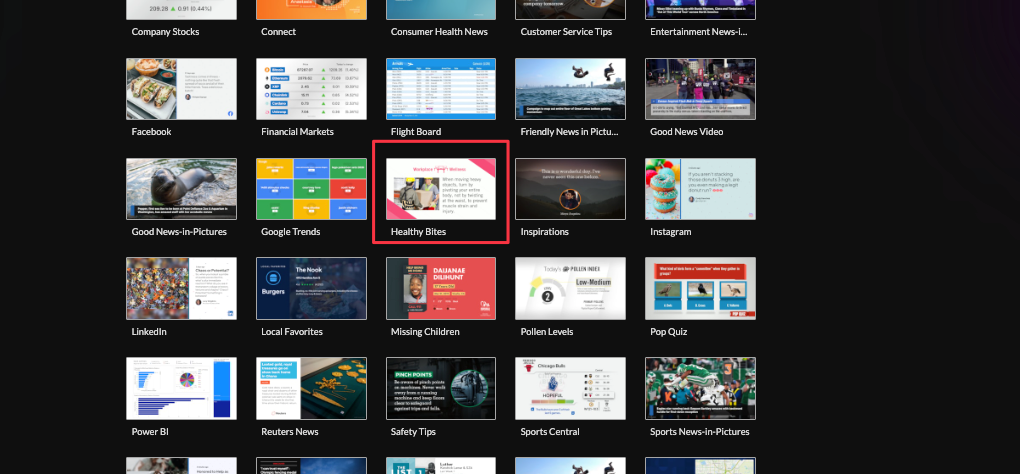
1. Begin configuring your feed from the content menu by selecting the Healthy Bites tile.
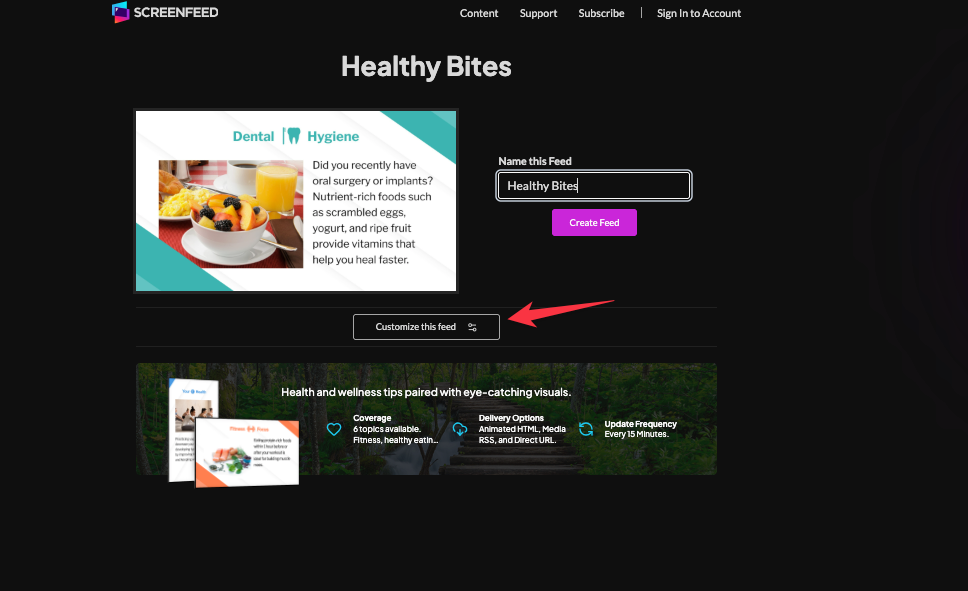
2. Set a custom name and click "Customize This Feed".
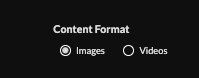
3. Select content format (images or video).
4. Set content views by deselecting the radio buttons (dental, fitness, healthy eating, etc.)

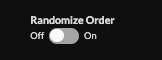
5. Optionally randomize order.
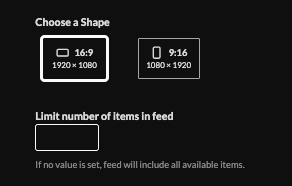
6. Choose your shape (does not apply to HTML delivery) and limit the number of items,
7. Set the delivery method.

Image delivery: HTML, Media RSS, Direct URL.
Video delivery: Media RSS, direct URL.
Learn more about advantages to each delivery method here www.screenfeed.com/support-articles/delivery-methods-available
Click "Create Feed".