.png?width=300&height=63&name=Screenfeed%20Logo_White%20(1).png)
About Facebook for Digital Signage
Facebook for digital signage pulls posts from your Facebook Business page. Posts can be organized in your chosen layout and style, including video playback and a call to action.
What you need to get started:
- Facebook for digital signage requires Authentication from a user with admin access to a facebook business page.
- Facebook may require occasional re-authentication if the authenticating user is deactivated, user’s password is changed, security issues arise. Generally the authentication lasts at least 60 days, but could last for up to 1 year before requiring a re-authentication.
- Plan your design based on our playback recommendations.
Facebook Feed Configuration
- Begin configuring your Facebook feed from the content menu by selecting the Facebook Tile.
- Since facebook uses a data connection to your facebook page, you must be signed in to a screenfeed account to create this feed.
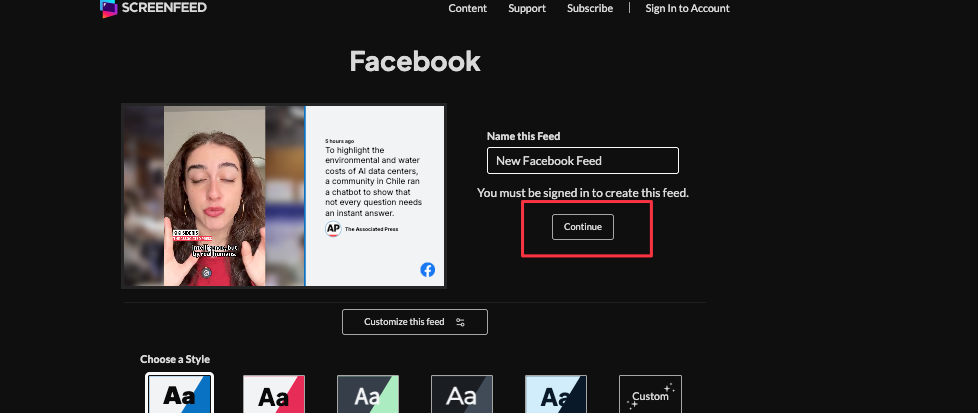
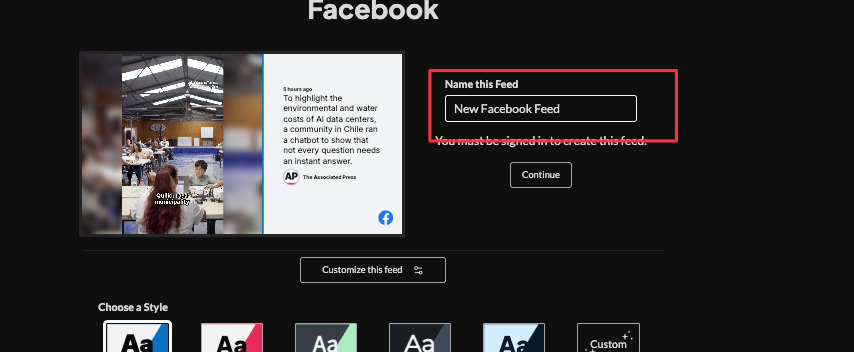
3. Set a custom name and click "Customize This Feed".
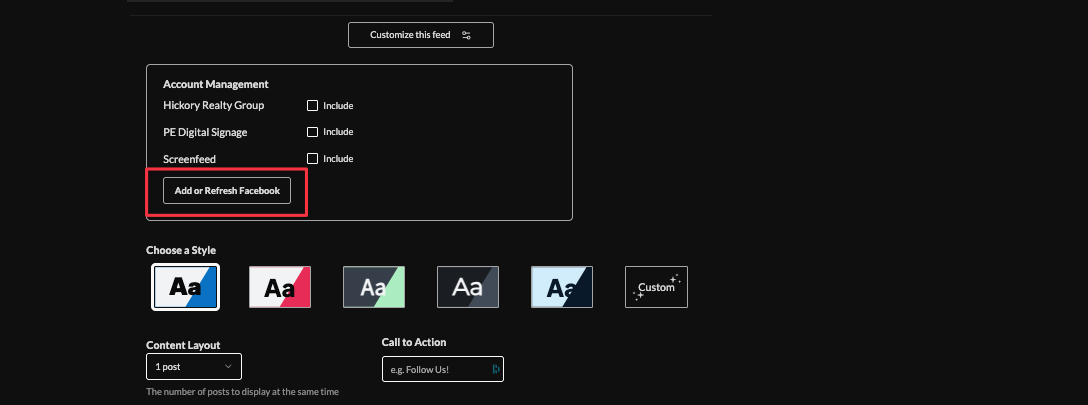
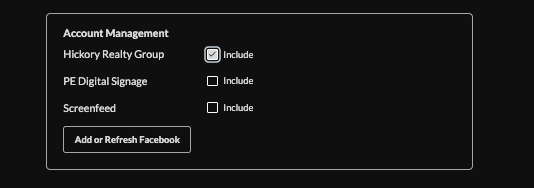
4. Click "Add or Refresh Facebook,"
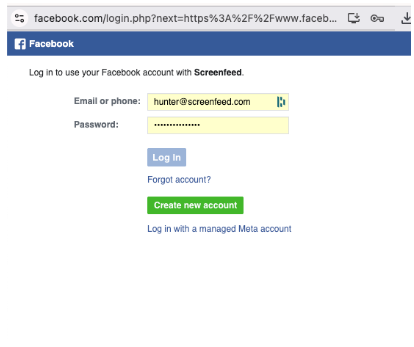
5. Enter facebook credentials, and authorize the application.
6. Click the checkbox next to the account you want to include.
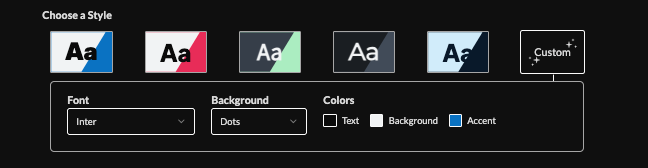
7. Choose a style (Preset or Custom) to adjust fonts, patterns (confetti, sprinkles, etc.), and colors.
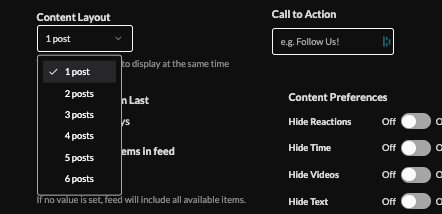
8. Select the content layout (grid of posts), set a call to action.
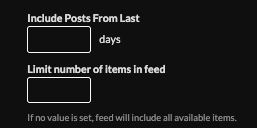
9. Scope the posts by setting limits on historic posts and number of items.
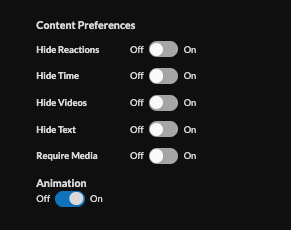
10. Set content preferences (hide reactions, times, videos, etc.) and enable/disable animations.
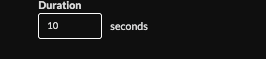
11. Set the duration (default 10s)
12. Choose intro settings and delivery method (HTML, Media RSS, Json). Need help picking a delivery Method Learn more about advantages to each delivery method here www.screenfeed.com/support-articles/delivery-methods-available

13. Delivery method (HTML media, RSS, direct URL, Json, XML).Need help picking a delivery Method Learn more about advantages to each delivery method here www.screenfeed.com/support-articles/delivery-methods-available

14. Click the "Create Feed" button.