.png?width=300&height=63&name=Screenfeed%20Logo_White%20(1).png)
Company Stocks Feed Configuration
- Begin configuring your feed from the content menu by selecting the Company Stocks tile.
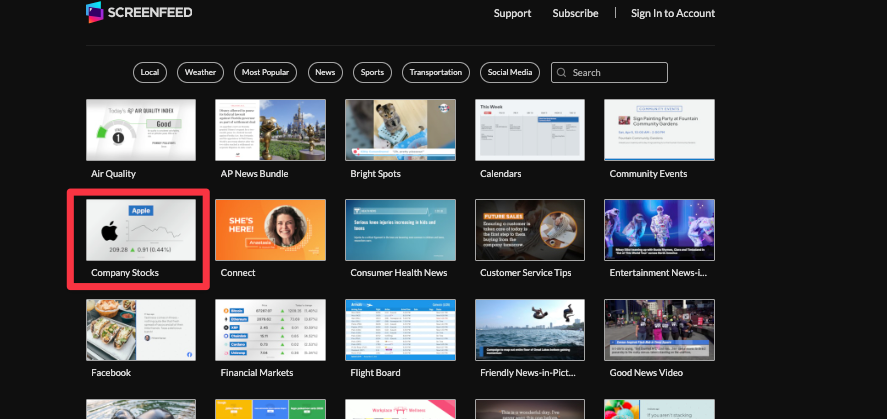
2. Set a custom name.
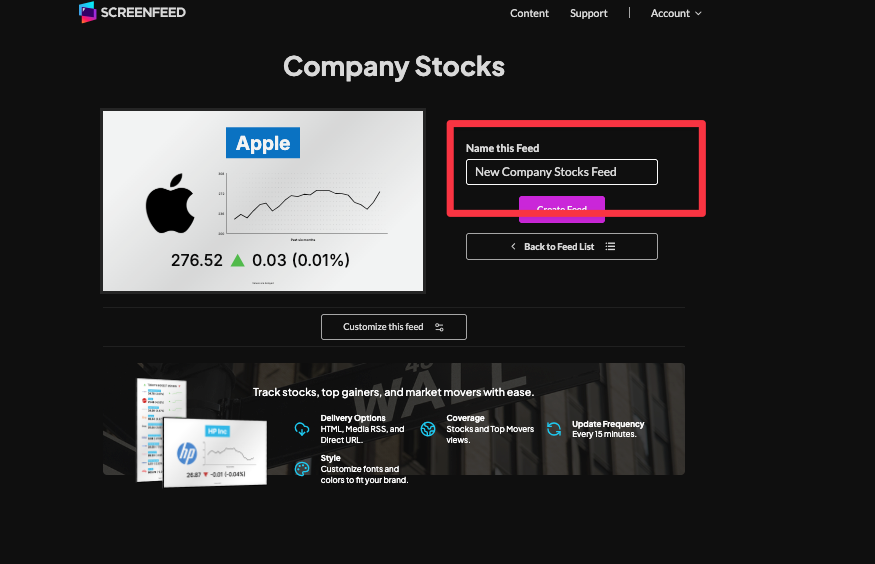
3. Click "Customize this Feed" if you wish to further customize the feed, or click “Create Feed” to generate a feed url with preset options selected.
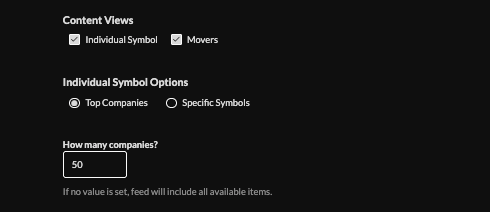
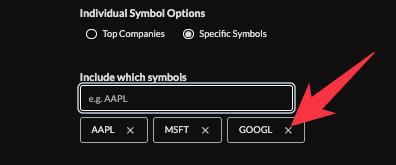
- Select content views to include, if "individual symbol" is selected, include top companies (default 50) or specify symbols by entering a business name/symbol.
Remove symbols by clicking the X next to the symbol name or exclude symbols from graphics.
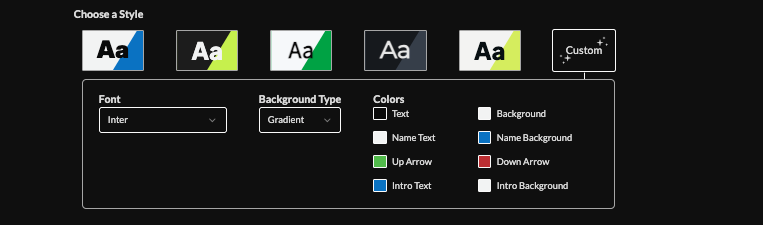
5. Choose a style (Preset or Custom) to adjust fonts, background type, and colors.
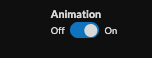
6. Enable/disable animation.
7. Choose intro settings. Learn more about the intro options from this link. www.screenfeed.com/support-articles/intro-options

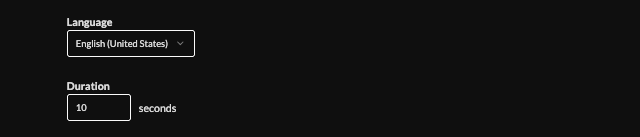
8. Set the language, and set the duration (default 10s).
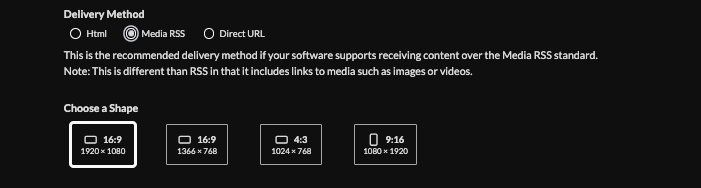
9. Choose a delivery method (HTML, media, direct URL) and click "Create Feed". Need help picking a delivery Method Learn more about advantages to each delivery method here www.screenfeed.com/support-articles/delivery-methods-available